

Most client decks die in the editor.
You start in PowerPoint. Two hours later you are still nudging text boxes. The story is fine. The build is the bottleneck.
That is the gap Gamma closes. Use Gamma for presentations and you draft a full client deck from a prompt in under a minute. Then you spend your time on the argument, not the alignment guides.
This is a hands-on guide. Real steps. Real prompts. Real export settings.
We pull from how our team builds AI-native decks for pitches and reviews. By the end, you can ship a branded, client-ready deck in one sitting.
Let's get into it.
Quick Facts: Gamma for Presentations at a Glance
- Gamma passed $100M ARR and a $2.1B valuation in late 2025 — (Source: TechCrunch, 2025 — techcrunch.com).
- Gamma serves over 50 million users worldwide — (Source: Sacra, 2025 — sacra.com/c/gamma).
- Building a deck from a blank canvas takes 8 to 12 hours — (Source: Venngage, 2019 — venngage.com).
- 47% of self-made decks take over 8 hours to build — (Source: Visme, 2026 — visme.co).
Why Gamma Works for Client Decks
Gamma is an AI deck builder. You give it a prompt. It returns a full presentation.
It is not a template gallery. It writes the content, lays out the slides, and styles them as one system.
That matters for client work. A pitch deck and a monthly review have different jobs. Gamma adapts to both from the same prompt box.
The format is also different. Gamma uses cards, not fixed slides. Cards scroll and can hold more depth. You still export them as normal slides when you need a flat file.
Speed is the headline. A blank-canvas deck can eat 8 to 12 hours of build time (Source: Venngage, 2019 — venngage.com). Gamma drafts the same deck in about 60 seconds. You spend the saved time refining the story.
This is why it scaled fast. Gamma crossed $100M ARR with a tiny team (Source: TechCrunch, 2025 — techcrunch.com). Among AI presentation tools, that growth is rare.
It now serves over 50 million users (Source: Sacra, 2025 — sacra.com/c/gamma). That scale means a mature editor and steady updates. For agency work, that stability matters. You do not want a key client deck built on a tool that may vanish.
There is one trade-off to flag. The free tier brands your deck and limits export. So plan for a paid seat if you ship client work.
Q: Is Gamma good for client presentations?
A: Yes. It drafts a full deck fast, then lets you brand it and export to PowerPoint or PDF. That makes it strong for pitches, reviews, and strategy decks where speed and a clean finish both matter.
Step 1: Generate Your First Deck
Start at the dashboard. Click Create new.
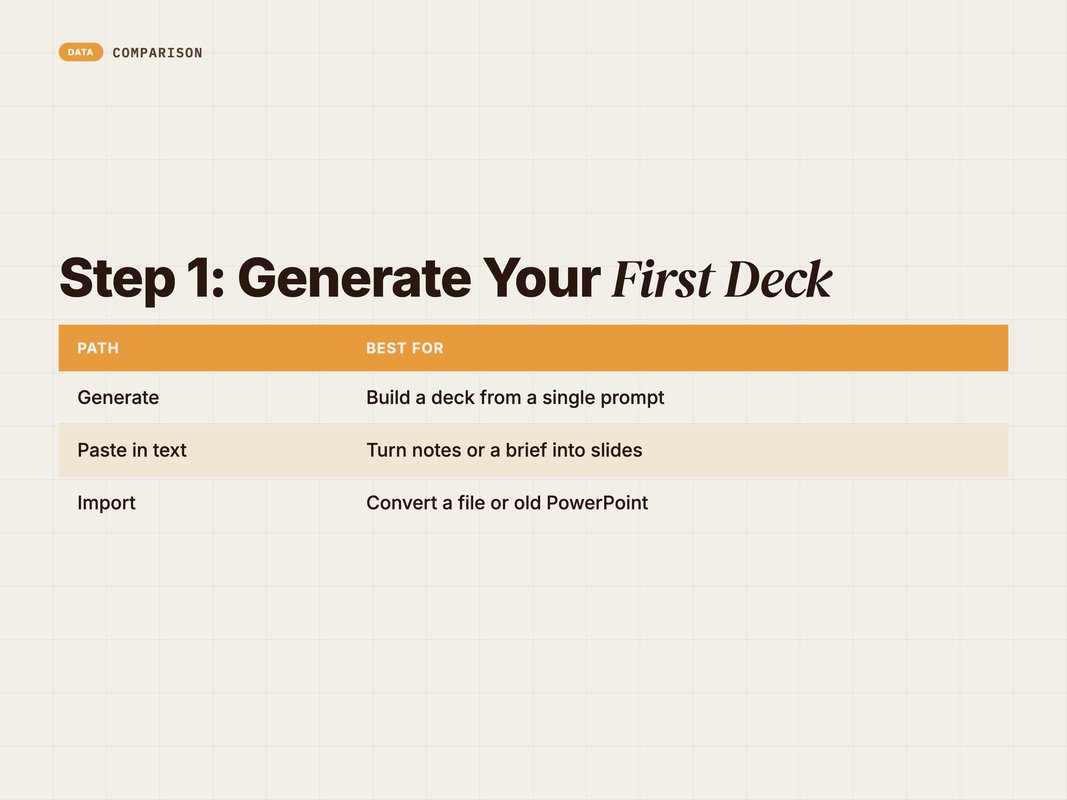
You get three paths: Generate, Paste in text, and Import. Each fits a different starting point.
- Generate builds a deck from a single prompt. Best when you have an idea, not a doc.
- Paste in text turns notes or a brief into slides. Best when you already wrote the content.
- Import converts a file or doc into a Gamma deck. Best for reworking an old PowerPoint.
For a fresh client deck, pick Generate, then Presentation.
Now write the prompt. Vague prompts give vague decks. Be specific about audience, goal, and length.
Here is a copy-pasteable prompt for a pitch:
Create a 12-slide pitch deck for a mid-size D2C skincare brand. Audience: the marketing director. Goal: win a paid social and SEO retainer. Cover the problem, our approach, a 90-day plan, proof points, and pricing tiers. Confident, data-led tone.
Gamma drafts an outline first. Read it. This is your cheapest edit point.
Adjust the outline before you build. Add a slide. Cut one. Reorder. Then pick a theme and click Generate. The deck lands in about 60 seconds.
Q: How specific should my Gamma prompt be?
A: Very. Name the audience, the goal, the slide count, and the tone. A prompt with those four anchors gives a usable first draft. A one-line topic gives generic filler you then have to fix.
Four prompt habits make a real difference. They cut your editing time later.
First, name the audience by role. A CFO prompt gives a numbers-first deck. A founder prompt gives a story-first one. Same topic, two different decks.
Second, set the slide count. Without it, Gamma guesses. With it, you control the length.
Third, give structure, not just a topic. List the sections you want. Problem, approach, plan, proof, price. Gamma follows your spine.
Fourth, set the tone in plain words. Confident and data-led. Warm and simple. Tone words steer the writing more than you expect.
Here is a stronger prompt for a monthly client review:
Create a 10-slide monthly performance review for a D2C client. Audience: the brand founder. Sections: results vs targets, channel breakdown, three wins, two risks, next month's plan. Tone: clear, honest, no jargon.
Run that, then refine with the Agent. You land near-final in two passes.
Step 2: Edit Cards Without Breaking the Deck
Your first draft is a starting point, not the final.
Click any element to edit it inline. Text, images, charts. It all edits in place.
Need to redo one slide? Use the regenerate button on that card. It rewrites only that card. The rest stays untouched.
This is the part that saves client-deck time. You are not rebuilding the file. You are nudging one card at a time.
Gamma also handles data. Open the chart tools and drop in a bar or pie chart. Edit the data points, labels, and legend right inside the card. No round-trip to a spreadsheet.
This matters for review decks. Your client's numbers change every month. You update the chart in the card and the slide is current. No exporting from a spreadsheet and pasting an image.
You can also add images fast. Gamma can generate one from a prompt or pull from its library. Keep it on-brand and sparing. A client deck needs clarity, not stock clutter.
For client work, three edits matter most:
- Fix the numbers. Replace placeholder stats with the client's real data.
- Sharpen the headline on each card. One clear claim per slide.
- Cut filler cards. A tight 10-card deck beats a padded 18.
Do those three on every draft. They turn an AI draft into a deck you would actually present.
Gamma also gives you layout control per card. Click a card and you can switch its layout. Two columns. A full-bleed image. A stat block. Pick the layout that fits the point.
Watch the card length. Cards scroll, so it is easy to overload one. For a client deck, keep each card to one idea. A scrolling card reads fine on the web but crowds a flat export.
Q: Will editing one card mess up the others?
A: No. Gamma edits cards independently. The regenerate button rewrites a single card and leaves the rest alone. That is why it is faster than fixing a PowerPoint, where one change often shifts the whole layout.
Step 3: Use the Gamma Agent to Restyle Fast
The biggest recent shift is the Gamma Agent.
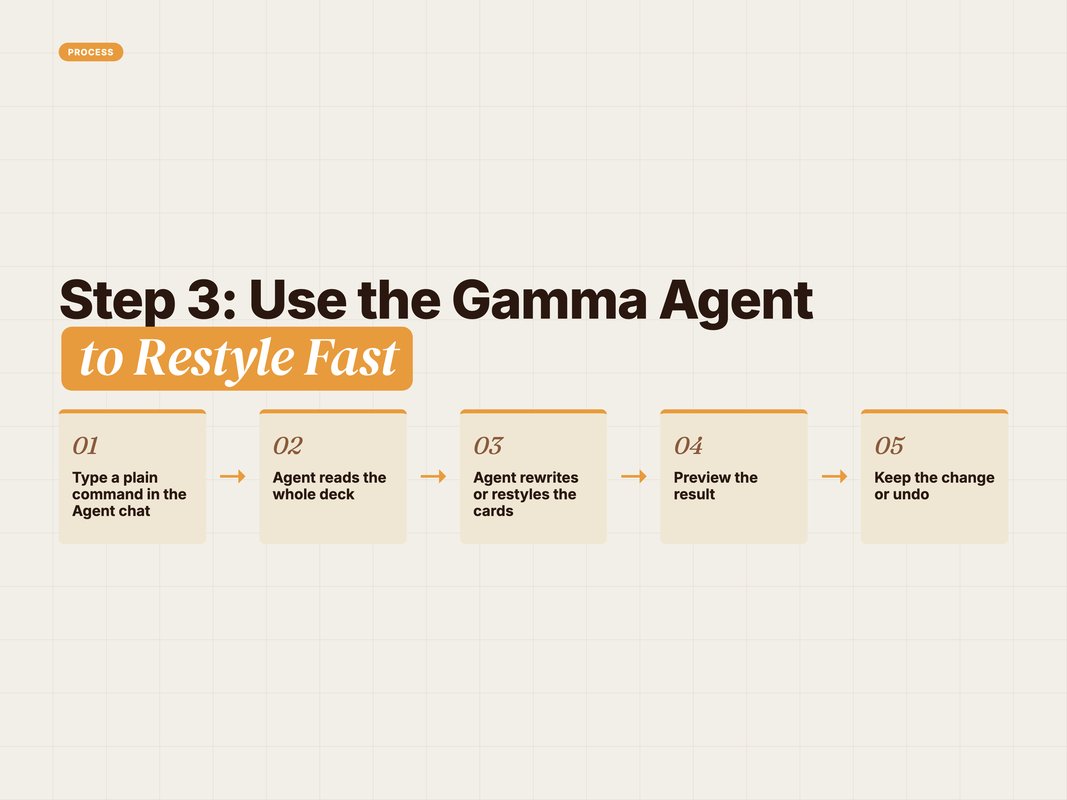
It is a chat editor built into the deck. You type a command. The Agent acts on the whole deck.
No menu hunting. You describe the change in plain words.
Try these commands. Each one is copy-pasteable.
- Make this deck more corporate and less playful.
- Add a competitor comparison slide after the approach section.
- Shorten every slide to one headline and three bullets.
- Rewrite the pricing slide for a more budget-conscious client.
The Agent restyles or rewrites, then shows the result. You keep it or undo.
This beats hunting through menus. You say what you want in one line. The Agent does the layout work. That speed is why a chat-first editor changes how you refine a deck.
This is the difference between AI presentation tools that draft once and tools that iterate. The Agent lets you reshape a deck in seconds, mid-review, while a client watches.
For agency work, that is real leverage. A client says "make it punchier" on a call. You type it. The deck changes before the meeting ends.
Q: What is the Gamma Agent?
A: It is a chat-based editor inside the deck. You type plain commands like "add a competitor slide," and it rewrites or restyles the deck for you. It replaces a lot of manual clicking when you refine a draft.
Step 4: Brand the Deck for Your Client
A generic deck loses the room. Branding is what makes it client-ready.
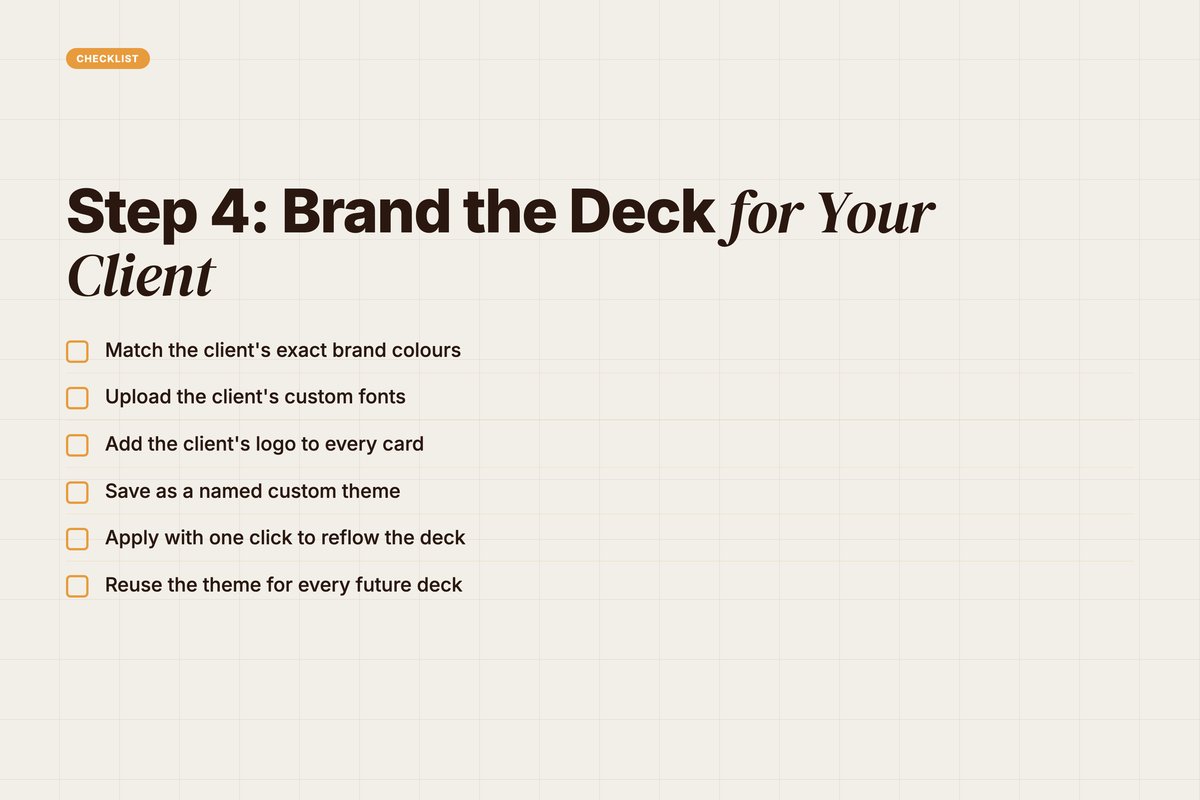
Gamma handles brand control through themes. Open Themes, then Create or import a theme.
Set these for each client:
- Colours. Match the client's exact brand palette, not a close preset.
- Fonts. Upload the client's typeface for a real match.
- Logo. Add it so it carries across every card.
Save it as a named custom theme. Now you reuse it for every deck for that client.
The payoff is the one-click apply. Swap the theme and the whole deck reflows. Same content, new brand skin, in one click.
A note on plans. Custom fonts and a full brand kit sit on the Pro tier and up (Source: Gamma, 2026 — gamma.app/pricing). The free plan gives core themes but limits brand control. For client-facing work, a paid plan pays for itself.
Q: How do I add my client's branding to a Gamma deck?
A: Open Themes, create or import a theme, then set the client's colours, fonts, and logo. Save it as a custom theme and apply with one click. Custom fonts need a Pro plan or higher.
Step 5: Export a Client-Ready File
A web link is fine for a quick share. For a formal client review, you often need a file.
Gamma exports to PowerPoint, PDF, PNG, and Google Slides.
To export, click Share, then Export, then choose your format.
Two rules for clean client exports:
- Use a paid plan. The free tier adds a Gamma badge and limits PowerPoint export (Source: Gamma, 2026 — gamma.app/pricing). A client deck should not carry a tool badge.
- Check the file. Some interactive elements flatten on export. Open the PowerPoint before you send it.
Pick the format by use case:
- PowerPoint when the client edits the file or runs their own version.
- PDF when you want a fixed, no-edit handout.
- Google Slides when the client team lives in Google Workspace.
Keep the live Gamma link too. It updates when you edit, so a shared link always shows the latest deck. That is useful for ongoing retainers.
Q: Can you export Gamma decks to PowerPoint?
A: Yes. Gamma exports to PowerPoint, PDF, PNG, and Google Slides. Clean export without the Gamma badge needs a paid plan. Check the file first, since some animations flatten on export.
Gamma vs the Traditional Deck Workflow
The old way is manual. The Gamma way is generate-then-refine.
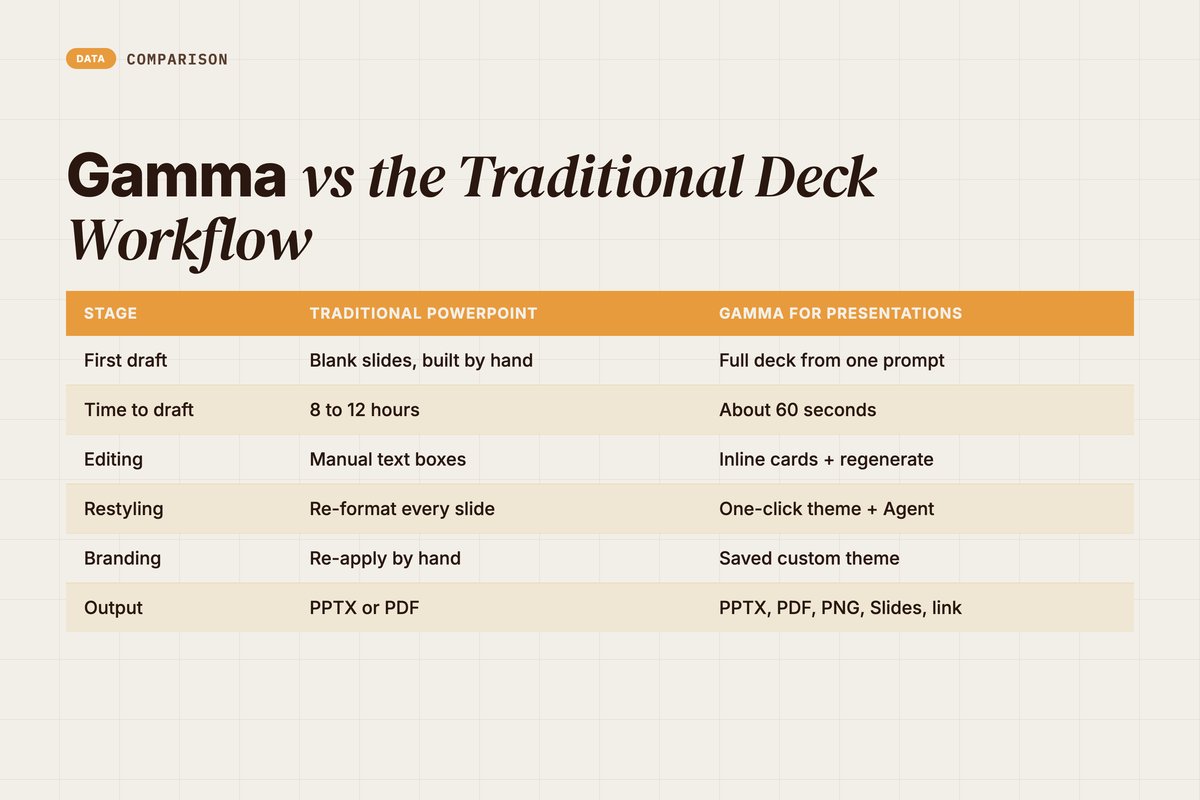
Here is the contrast, stage by stage.
| Stage | Traditional PowerPoint | Gamma for Presentations |
|---|---|---|
| First draft | Blank slides, built by hand | Full deck from one prompt |
| Time to draft | 8 to 12 hours | About 60 seconds |
| Editing | Manual text boxes | Inline cards + regenerate |
| Restyling | Re-format every slide | One-click theme + Agent |
| Branding | Re-apply by hand | Saved custom theme |
| Output | PPTX or PDF | PPTX, PDF, PNG, Slides, link |
The win is not just speed. It is where the time goes.
In the old flow, most time goes to the build. In Gamma, most time goes to the message. For client work, the message is what gets paid for.
That said, keep one habit from the old world. Always proof the final file. AI drafts fast, but it still needs a human edit pass before a client sees it.
Q: Is Gamma faster than PowerPoint for client decks?
A: For drafting, clearly yes. Gamma builds a full deck in about a minute versus hours by hand. The real gain is that you spend saved time on the story and the data, not on slide layout.

A Repeatable Workflow for Agency Decks
One deck is a task. A system is the win. Here is the loop we run.
Use this checklist on every client deck.
- Write a prompt with audience, goal, slide count, and tone.
- Edit the outline before you generate the deck.
- Generate, then fix numbers and headlines card by card.
- Use the Gamma Agent for tone and structure passes.
- Apply the client's saved custom theme.
- Export to PowerPoint or PDF and proof the file.
- Keep the live link for retainer updates.
Run this loop and a client deck takes one sitting, not one afternoon.
The numbers back the shift. Nearly half of self-made decks take over 8 hours to build (Source: Visme, 2026 — visme.co). A prompt-first loop cuts that to minutes of build and a focused hour of editing.
Build a theme library too. One saved theme per client. New deck, one-click brand, done. That is how a small team ships decks at agency volume.
Q: How do I make Gamma part of a repeatable process?
A: Save a custom theme per client and reuse a fixed prompt-to-export loop. Standardise the prompt anchors and the export check. Then every deck follows the same fast path instead of a fresh build each time.
How YARD Builds AI-Native Decks
We are an AI-first growth marketing agency. We run performance marketing, LLM SEO, AI creatives, and AI funnels for D2C and B2B brands.
Client decks are part of that work. Pitches, monthly reviews, strategy sessions. They all need to look sharp and ship fast.
So we treat deck-building as an AI workflow, not a design chore. Tools like Gamma sit alongside our content and reporting stack.
The pattern is the same one we use across marketing. Let AI draft. Let humans judge. Ship faster without dropping quality.
We pair generation tools with a strict human edit pass. Every number gets checked. Every claim gets a source. Every deck gets proofed before a client sees it.
That is the point of AI presentation tools in an agency. Not to remove the strategist. To remove the busywork around the strategist.
If you want decks, content, and campaigns built this way, that is what we do. We build AI-native systems that move at the speed of the brief.
Want the wider toolkit?
[internal link: ai-tools-for-marketing-agencies]
See our guide on AI tools for agencies.
Decks are one piece of a bigger system. The same draft-then-judge habit runs through our content, ads, and reporting. It is how a lean team keeps quality high at speed.
Conclusion: Ship Better Decks, Faster
Gamma changes where your time goes.
Less time on layout. More time on the argument. That is the whole gain.
Start simple. Write a sharp prompt. Edit the outline. Generate. Refine card by card with the Agent. Brand it with a saved theme. Export a clean file and proof it.
Using Gamma for presentations is not about cutting corners. It is about cutting the busywork so the story gets your full attention.
Try it on your next client deck. Build one with the loop above. Then save the theme and do it again.
Want a partner that builds decks, content, and campaigns this way? That is the kind of AI-native work we do every day.
FAQ
Q: Is Gamma good for client presentations?
A: Yes. Gamma generates a full deck from a prompt in under a minute. It then lets you brand the deck with your client's fonts, colours, and logo. You can export to PowerPoint or PDF, so the file works in any client review. It suits pitches, monthly reviews, and strategy decks.
Q: How do you make a presentation in Gamma?
A: Click Create new, then Generate, then Presentation. Write a prompt with audience, goal, and slide count. Review the outline Gamma drafts, pick a theme, and click Generate. Gamma builds the deck in about 60 seconds. You then edit cards inline and export.
Q: Can you export Gamma decks to PowerPoint?
A: Yes. Gamma exports to PowerPoint, PDF, PNG, and Google Slides. Clean export without the Gamma badge needs a paid plan. Use Share, then Export, then choose PowerPoint. Some animations flatten on export, so check the file before you send it.
Q: How do I add my client's branding to a Gamma deck?
A: Open Themes, then Create or import a theme. Set the client's brand colours, upload their fonts, and add their logo. Save it as a custom theme. Apply it with one click and the whole deck reflows. Custom fonts need a Pro plan or higher.
Q: What is the Gamma Agent?
A: The Gamma Agent is a chat-based editor inside the deck. You type plain commands like make this more corporate or add a competitor slide. The Agent rewrites or restyles the deck for you. It replaces a lot of manual clicking when you refine a draft.
Q: Is Gamma free for presentations?
A: Gamma has a free plan with 400 AI credits and the core editor. Free decks carry a Gamma badge and PowerPoint export is limited. For unbadged client decks and clean export, you need the Plus plan or higher. Pricing starts at around 8 to 10 dollars a month.
Insights from Our Experts
Explore our latest articles on digital marketing strategies.